Quickstart
Weik.io 2026.1Create and deploy your first integration in 5 minutes.
On this page
Note: This quickstart focuses on developing and deploying your first integration using a pre-configured development environment. For production deployment and environment setup, see the Management section.
Prerequisites#
You need:
- VS Code installed
- Docker installed and running
Launch Weik.io environment#
Open the development environment directly in VS Code:
The first time you launch the devcontainer, it takes a few minutes to build. Once it finishes, you have a local Weik.io platform and the weikio CLI tool available.
Verify the environment#
Open a new terminal in VS Code (Terminal → New Terminal) and check that Weik.io is running:
weikio agents lsYou should see the Integration Agent listed in the output:
[
  {
    "Id": "5e39aebf-35d5-4b4a-8f37-050b8543b808",
    "Name": "399b58438f1e",
    "PoolName": "",
    "Status": "Online"
  }
]
Create your first integration#
Weik.io integration flows run on Apache Camel, which has hundreds of existing connectors for different systems.
Create a directory and initialize a new integration:
mkdir -p integrations
cd integrations
weikio integration init my-first-integrationIntegration initialized to my-first-integration/integration.camel.yaml
To run: weikio integration run my-first-integrationCheck the files it generated:
ls -la my-first-integrationYou will see an application.properties file and an integration.camel.yaml file:
-rw-r--r-- 1 user user  68 Nov 12 07:48 application.properties
-rw-r--r-- 1 user user 174 Nov 12 07:48 integration.camel.yaml
Look inside the YAML file:
cat my-first-integration/integration.camel.yaml- from:
uri: "timer:yaml"
parameters:
period: "3500"
steps:
- setBody:
simple: "Hello Weik.io: {{AdditionalMessage}}"
- log: "${body}"This is a simple loop. It runs every 3.5 seconds using a timer, pulls a message from the properties file, and prints it to the console.
Visualize the integration#
If you prefer visual editing over typing YAML, you can use Karavan.
Right-click on my-first-integration/integration.camel.yaml and select Karavan: Open:
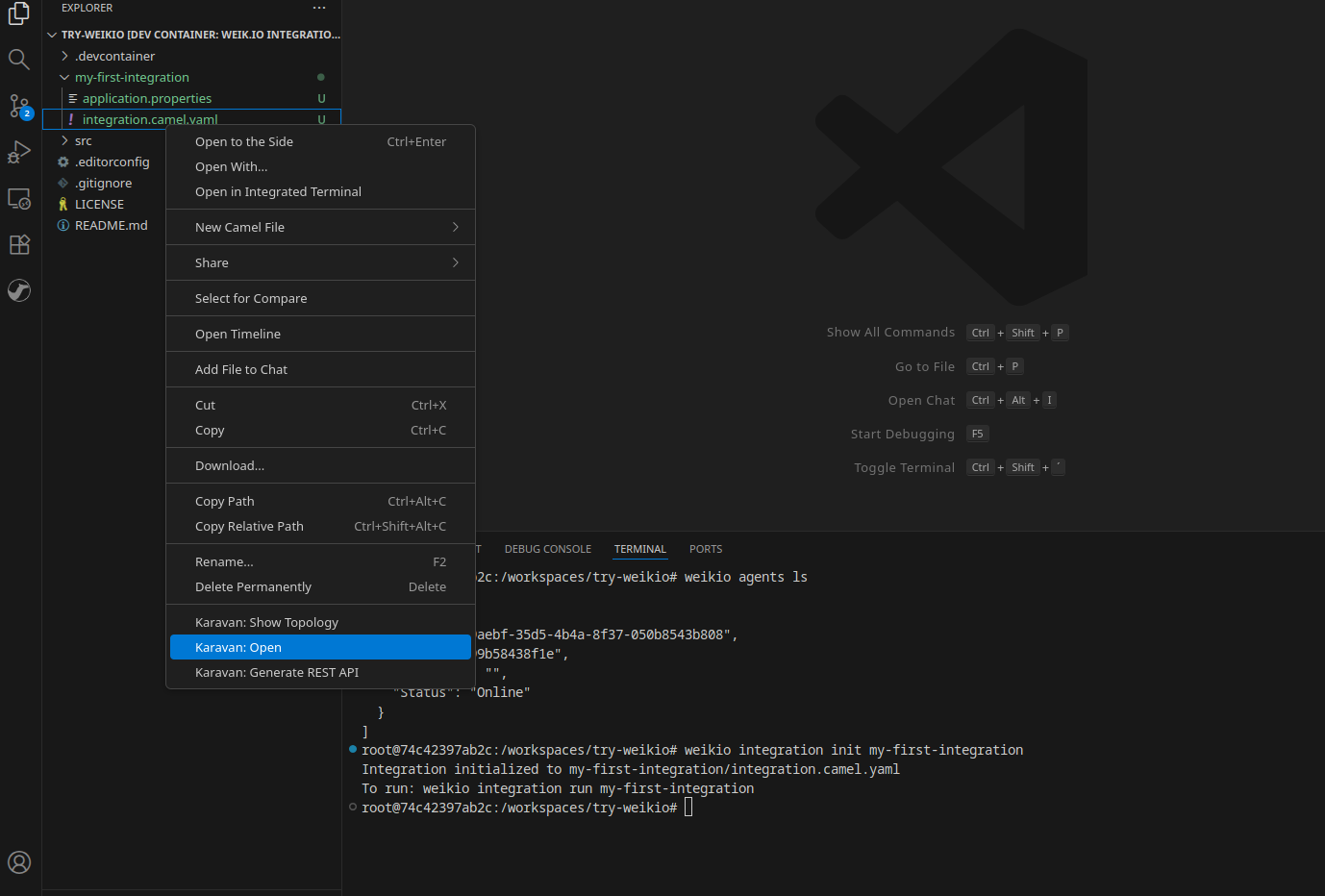
Karavan generates a diagram of your flow:
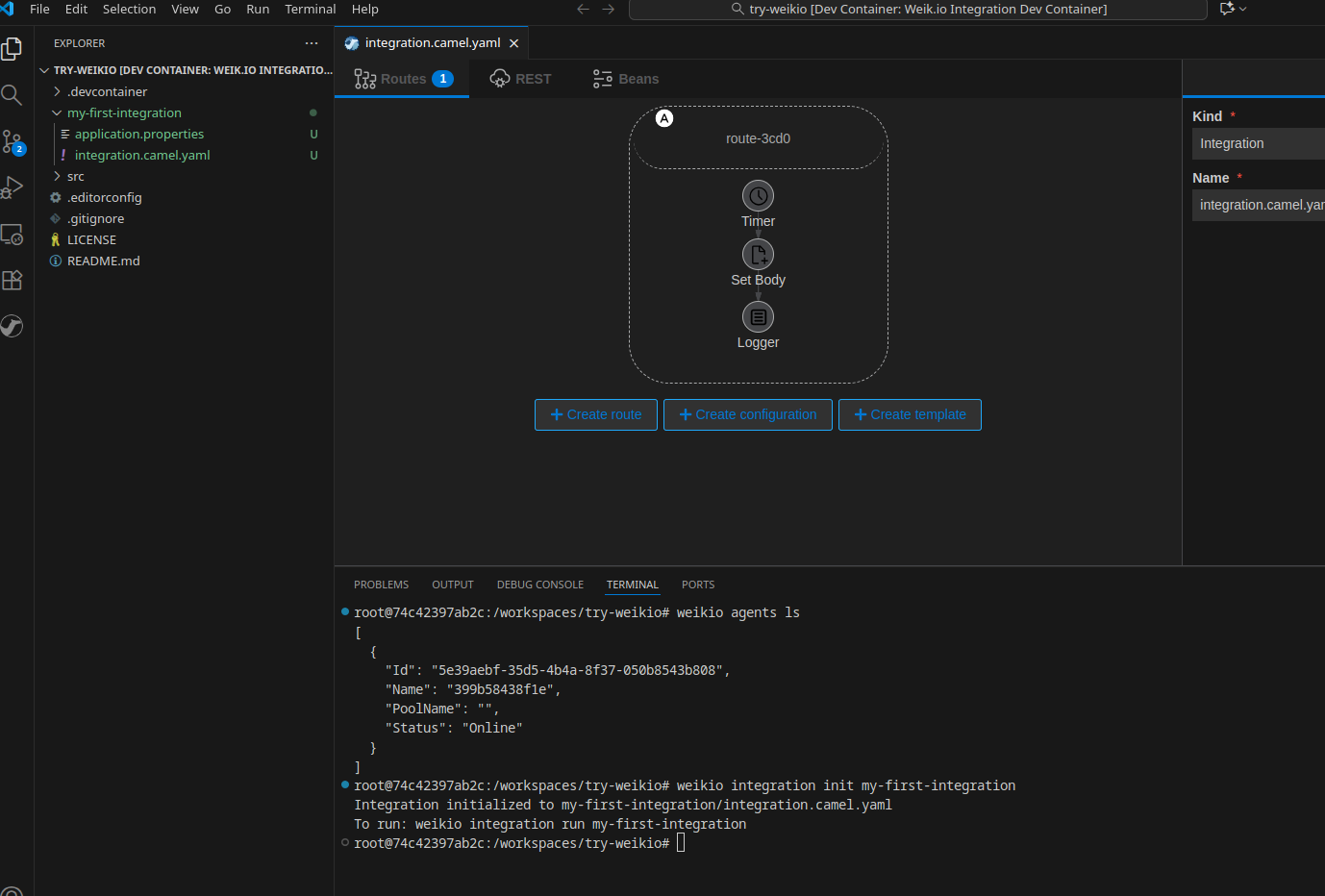
From here, you can add or modify steps using drag-and-drop instead of editing the text file directly.
Test locally#
Run the integration on your machine to make sure it works:
weikio integration run my-first-integrationThe output looks similar to this:
Starting integration
11/12/2025 5:50:57 AM: Information: Apache Camel (JBang) 4.4.1 is starting
11/12/2025 5:50:58 AM: Information: Apache Camel 4.4.1 (my-first-integration) is starting
11/12/2025 5:50:58 AM: Information: Property-placeholders summary
11/12/2025 5:50:58 AM: Information:     [application.properties]       AdditionalMessage=This message comes from the application.properties
11/12/2025 5:50:58 AM: Information: Routes startup (started:1)
11/12/2025 5:50:58 AM: Information:     Started route1 (timer://yaml)
11/12/2025 5:50:58 AM: Information: Apache Camel 4.4.1 (my-first-integration) started in 152ms
Integration started successfully, press q to exit, s for stats
11/12/2025 5:50:59 AM: Information: Hello Weik.io: This message comes from the application.properties
11/12/2025 5:51:02 AM: Information: Hello Weik.io: This message comes from the application.properties
11/12/2025 5:51:06 AM: Information: Hello Weik.io: This message comes from the application.properties
The integration logs the message every 3.5 seconds.
Press q to stop the integration.
Deploy to Weik.io#
Push the integration to your local Weik.io platform:
weikio integration push my-first-integrationThe command prints the JSON configuration that was deployed:
{
  "Name": "my-first-integration",
  "Project": "",
  "Variables": {
    "AdditionalMessage": "This message comes from the application.properties"
  },
  "Labels": [],
  "IntegrationFiles": [
    {
      "FileName": "integration.camel.yaml",
      "FileContent": "- from:\n    uri: \"timer:yaml\"..."
    },
    {
      "FileName": "application.properties",
      "FileContent": "AdditionalMessage=This message comes from the application.properties"
    }
  ],
  "Requirements": []
}
The integration is now deployed and ready to run on the platform.
Check status#
Verify the platform received the integration:
weikio integration flows lsYou should see your integration in the list:
[
  {
    "FlowName": "my-first-integration",
    "Project": "",
    "Status": "Stopped",
    "RequestedStatus": 0,
    "RunningCount": 0,
    "ErrorCount": 0,
    "StoppedCount": 0,
    "UnknownCount": 0,
    "Category": "Flow",
    "AdditionalPackages": null,
    "Version": "1.0.0",
    "Labels": []
  }
]
At this point, the status shows “Stopped”.
Start the integration#
Start the integration on the platform:
weikio integration flows start my-first-integrationCheck the status again:
weikio integration flows lsThe status should now show “Running”. The Integration Agent has picked it up and is executing the loop:
[
  {
    "FlowName": "my-first-integration",
    "Project": "",
    "Status": "Running",
    "RequestedStatus": 1,
    "RunningCount": 1,
    "ErrorCount": 0,
    "StoppedCount": 0,
    "UnknownCount": 0,
    "Category": "Flow",
    "Version": "1.0.0",
    "Labels": []
  }
]
View in UI#
You can also monitor this from the web dashboard.
- In VS Code, open the Ports tab (usually at the bottom panel)
- Forward port 80 (the UI service)
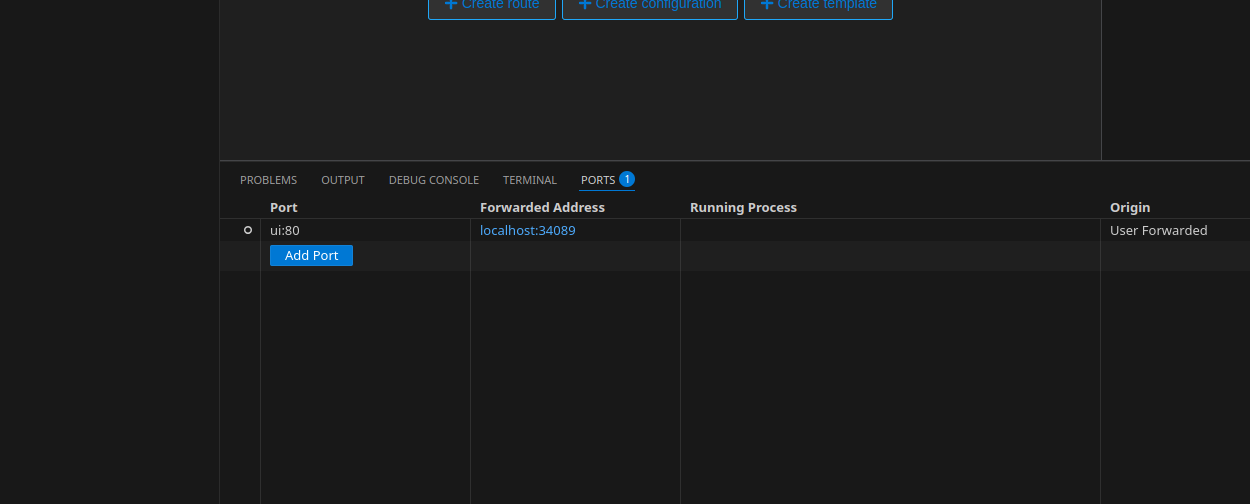
- Open your browser and navigate to the address shown in Forwarded Address (e.g.,
http://localhost:34089) - Log in with:
- Username:
dev@weik.io - Password:
password
- Username:
The dashboard’s Integrations Overview page lists my-first-integration with the status Started, the type Flow and the version 1.0.0.
The UI lets you view live logs, monitor status, and manage your deployed integrations without using the terminal.
Next steps#
You now have a working integration. From here, you can:
- Platform Architecture: See how the Weik.io components work together
- Introduction: Read more about what the platform can do
- Apache Camel Documentation: Browse the components you can plug into your flows